
Social Networks & Auto-Posting
Manage your social media accounts and automate post scheduling
Connecting Social Media Accounts
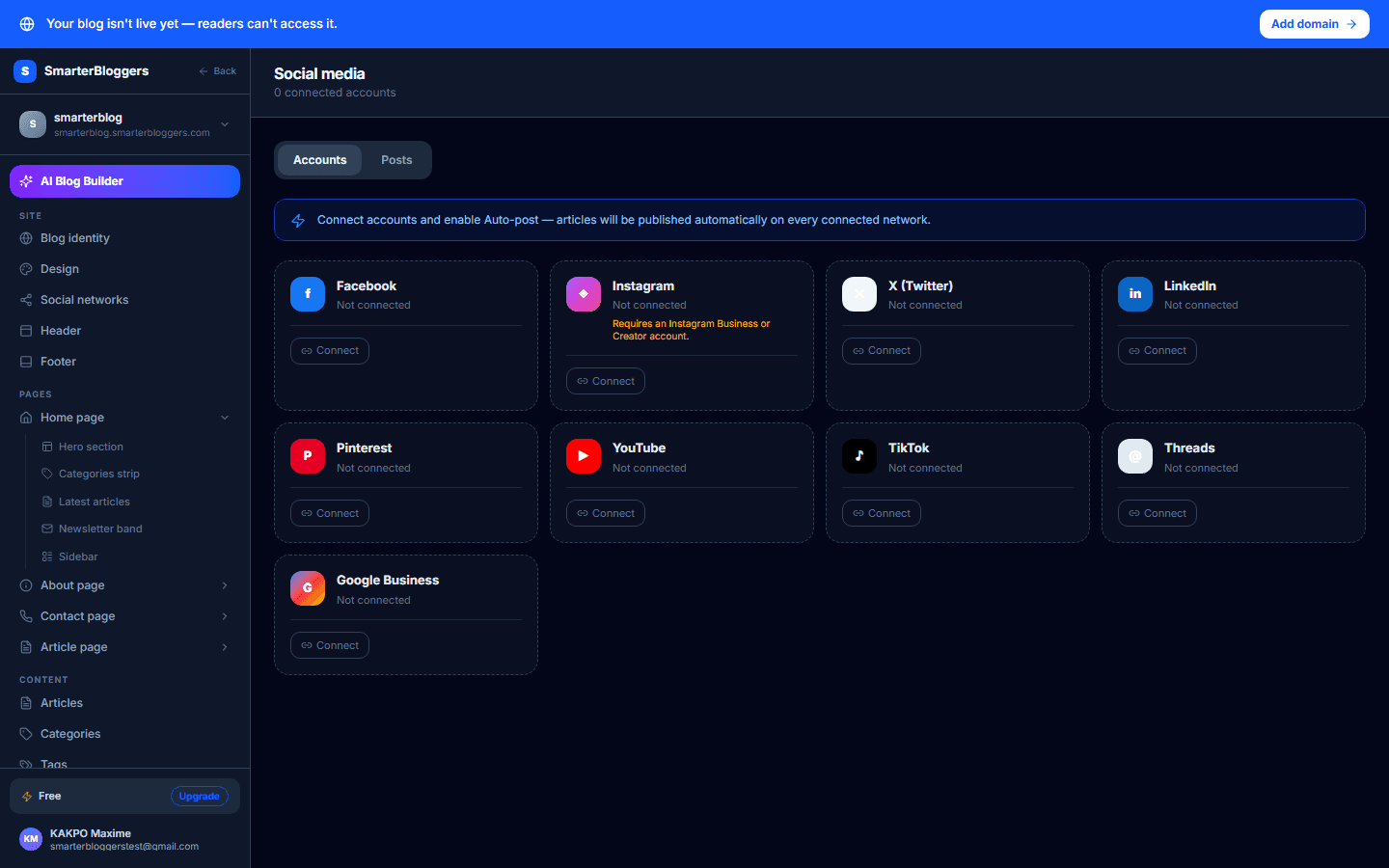
To connect a social media account, navigate to the 'Accounts' tab on the Social page. Each platform has a dedicated card where you can initiate the connection process. Click the 'Connect' button to start the OAuth flow for the desired platform. Supported platforms include Facebook, Instagram, LinkedIn, Twitter, TikTok, Threads, Pinterest, YouTube, and Google Business. You will be redirected to the respective platform's authorization page to grant permissions. Upon successful connection, the account will be listed as 'Connected' with its username or display name shown.
- Ensure you have admin rights to connect accounts.
- Only Instagram Business accounts are supported.
Managing Connected Accounts
Once an account is connected, you can manage it directly from the platform card. You can toggle the auto-post feature, which allows automatic posting of scheduled content. To disconnect an account, click the 'Disconnect' button. A confirmation prompt will appear to prevent accidental disconnections. If you wish to refresh the account's tokens, ensure the account is active and navigate to the account's settings.
- Auto-posting can be toggled on or off as needed.
- Disconnected accounts can be reconnected by following the connection steps again.
Creating and Scheduling Posts
To create a new post, switch to the 'Posts' tab and click the 'New Post' button. In the post composer modal, select the social account you want to post from, enter your content, and optionally set a scheduled time. Posts can be scheduled for future dates or published immediately. The content limit is 280 characters. Once created, posts will appear in the posts list with their status (Pending, Scheduled, Published, Failed, or Canceled).
- Ensure your content is concise and within the character limit.
- You can edit scheduled posts before they are published.
Managing Scheduled Posts
In the 'Posts' tab, you can view all scheduled posts. Each post displays its content, status, and scheduled time if applicable. You can delete posts that are not yet published by clicking the trash icon. Published posts cannot be edited or deleted. If a post fails to publish, an error message will be displayed, and you may need to troubleshoot or retry.
- Check error messages for failed posts to understand issues.
- Use the external link icon to view published posts on their respective platforms.
OAuth Flow and Token Management
The OAuth flow is used to securely connect your social media accounts. Each platform requires specific scopes for permissions, such as posting and reading engagement data. Tokens are encrypted and stored securely. If a token expires, you can refresh it via the 'Refresh' option in the account settings. Some platforms may require reauthorization if the token cannot be refreshed.
- Regularly check token expiration dates to avoid disruptions.
- Reauthorize accounts if token refresh fails.
What's next?
Explore how to optimize your social media strategy with our advanced analytics and reporting features. Learn how to track engagement and refine your content for better reach.