
Managing Comments and Moderation
Comprehensive guide to handling comments on your blog
Viewing Comments
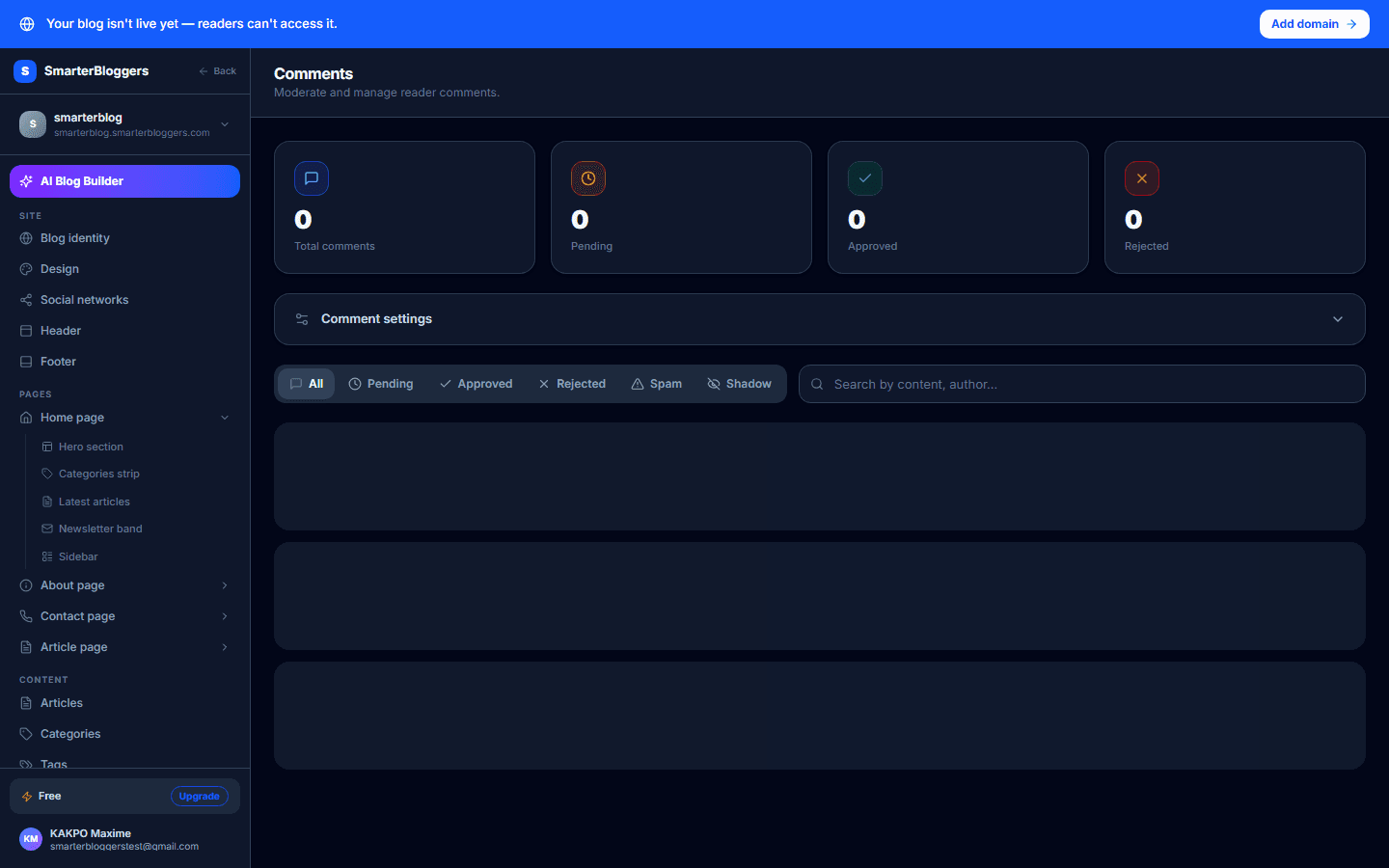
To view comments on a specific article, navigate to the comments section of the desired article. You can filter comments by their status using the available tabs: All, Pending, Approved, Rejected, Spam, and Shadow Banned. Each comment displays the author's name, email, status, and content, along with the date of creation. You can view up to 50 comments at a time, and use the search bar to find specific comments by content or author details.
- Use the search function to quickly locate specific comments.
- Switch between tabs to filter comments by status.
Creating a Comment
To create a comment, ensure that the article allows comments and that commenting is not closed. Provide the comment content, and optionally, your name, email, and website. If you are banned by email or IP, you will not be able to comment. Once submitted, the comment will be added to the article, and the comment count will be incremented.
- Ensure the article allows comments before attempting to post.
- Provide a valid email to avoid being banned.
Moderating Comments
As an editor, you can moderate comments by changing their status to Approved, Rejected, Spam, or Shadow Banned. Access the moderation panel and select the desired status for each comment. The comment's status will be updated accordingly, and the changes will be reflected in the comment statistics.
- Only editors can moderate comments.
- Use moderation to maintain the quality of discussions.
Deleting Comments
To delete a comment, navigate to the comment you wish to remove and click the delete button. This action will permanently remove the comment from the article, and the comment count will be decremented. Ensure you have the necessary permissions to delete comments.
- Deleting a comment is irreversible, so proceed with caution.
- Ensure you have the appropriate role to delete comments.
Banning Users
Editors can ban users from commenting by email or IP address. To ban a user, provide either the email or IP address, and optionally, a reason for the ban. This will prevent the user from posting comments on the blog. You can view and manage the list of banned users in the settings panel.
- Provide a clear reason for banning to maintain transparency.
- Review the ban list regularly to manage banned users.
Comment Statistics
The comment statistics section provides an overview of the total number of comments and their statuses. You can view counts for Pending, Approved, Rejected, and Spam comments. This helps in understanding the engagement level and moderation needs of your blog.
- Use statistics to gauge the effectiveness of your moderation efforts.
- Regularly check statistics to stay informed about comment activity.
What's next?
Now that you understand how to manage comments, explore other features like content creation and SEO optimization to enhance your blog's reach and engagement.
Comment Settings
Access the settings panel to manage global comment settings for your blog. You can choose between Open, Moderated, and Closed modes for comments. Open mode allows all comments, Moderated mode requires approval, and Closed mode disables comments entirely. Changes to the comment mode are applied immediately.