
Managing Notifications
How to view, manage, and configure notifications on your platform
Notification Overview
The notification system is designed to keep you informed about important events and updates. Notifications are categorized by type, such as 'info', 'success', 'warning', and 'error', each with distinct visual cues. Notifications can be directed to individual users or to all super admins. They are stored in a persistent notification center, ensuring that even if a notification fails to register, it does not affect the triggering action.
- Notifications are categorized by type for easy identification.
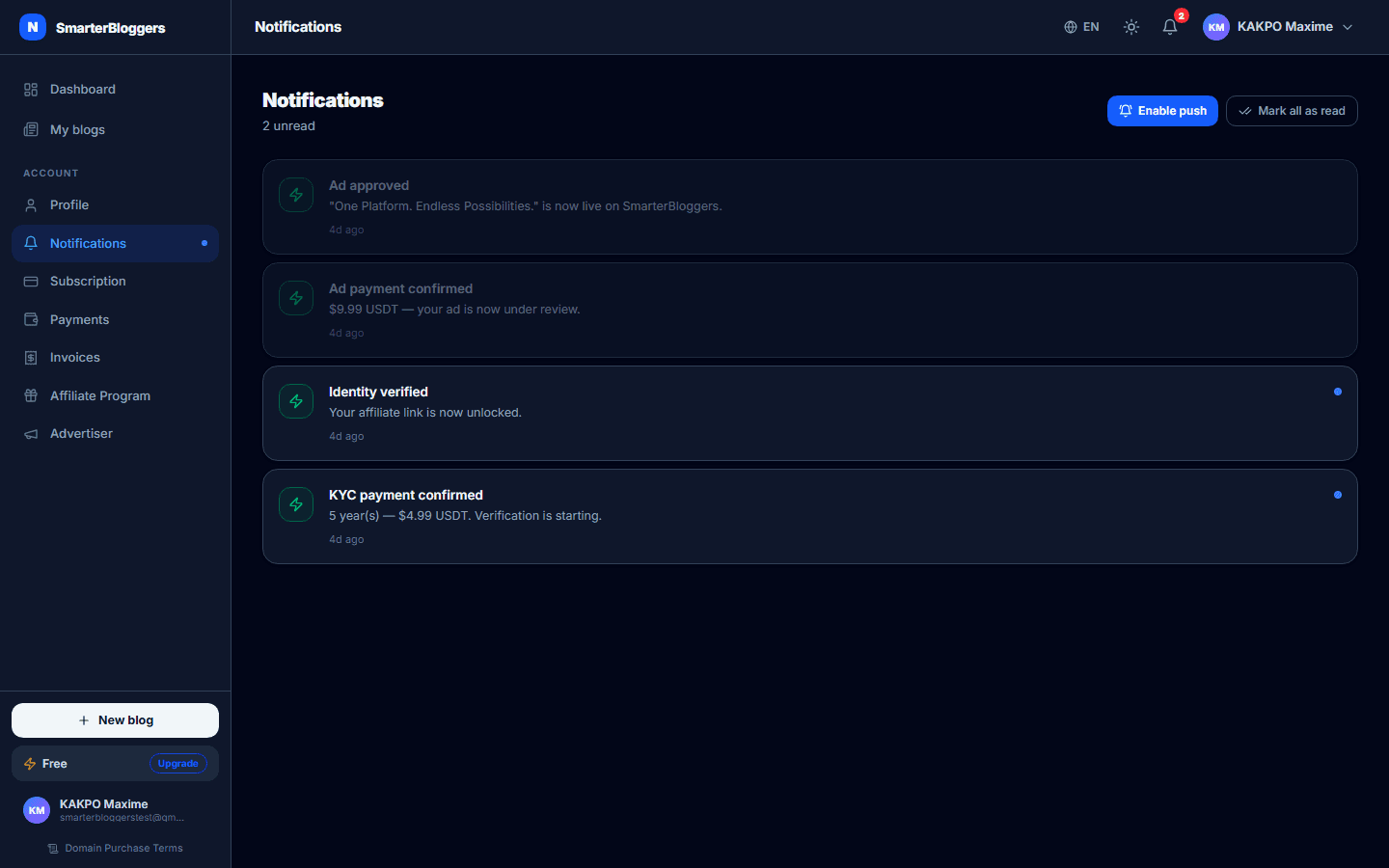
Viewing Notifications
To view your notifications, navigate to the Notifications page from your dashboard. Here, you will see a list of all notifications, each with a title, body, and optional action URL. Unread notifications are highlighted and can be marked as read by clicking on them. The page automatically refreshes every 30 seconds to ensure you have the latest updates.
- Unread notifications are marked with a blue dot.
Managing Notification Settings
You can manage your notification settings directly from the Notifications page. This includes enabling or disabling push notifications. If your browser supports notifications and service workers, you can enable push notifications by clicking the 'Enable Push Notifications' button. If push notifications are enabled, you can disable them by clicking 'Disable Push Notifications'.
- Ensure your browser supports notifications and service workers to enable push notifications.
Marking Notifications as Read
You can mark all notifications as read by clicking the 'Mark All as Read' button. This will update the notification status and remove the unread indicator. Individual notifications can also be marked as read by clicking on them, which will update their status immediately.
- Use 'Mark All as Read' to quickly clear unread notifications.
Push Notification Configuration
To enable push notifications, your browser must support notifications and service workers. Upon enabling, you will be prompted to allow notifications. If granted, your device will receive notifications even when you are not actively using the platform. You can disable push notifications at any time by accessing the same settings.
- Push notifications require browser permission to be enabled.
Handling Notification Errors
In case of errors during notification registration, the system logs the error but does not interrupt the action that triggered the notification. This ensures that critical operations are not affected by notification issues.
- Notification errors are logged for troubleshooting.
What's next?
Explore more about customizing your notification preferences and integrating with third-party services for enhanced alerts.